Original uploads don’t always stay original for long. It becomes very difficult to reach the original source once a video goes online, as its cropped versions, edited clips, and reposts can spread so easily. In some cases, a specific clip circulates with different captions, while the original context may be lost.
In such situations, reverse video search technology can be useful. But not every tool works in the same way. Some provide better results with screenshots, whereas others work better with video URLs or keywords. Some advanced tools, however, support both methods.
In this guide, we will discuss five tools, their practical uses, and give our verdict on each one to help you decide which tool works best for you.
Chapters
1. Reverse Video Search
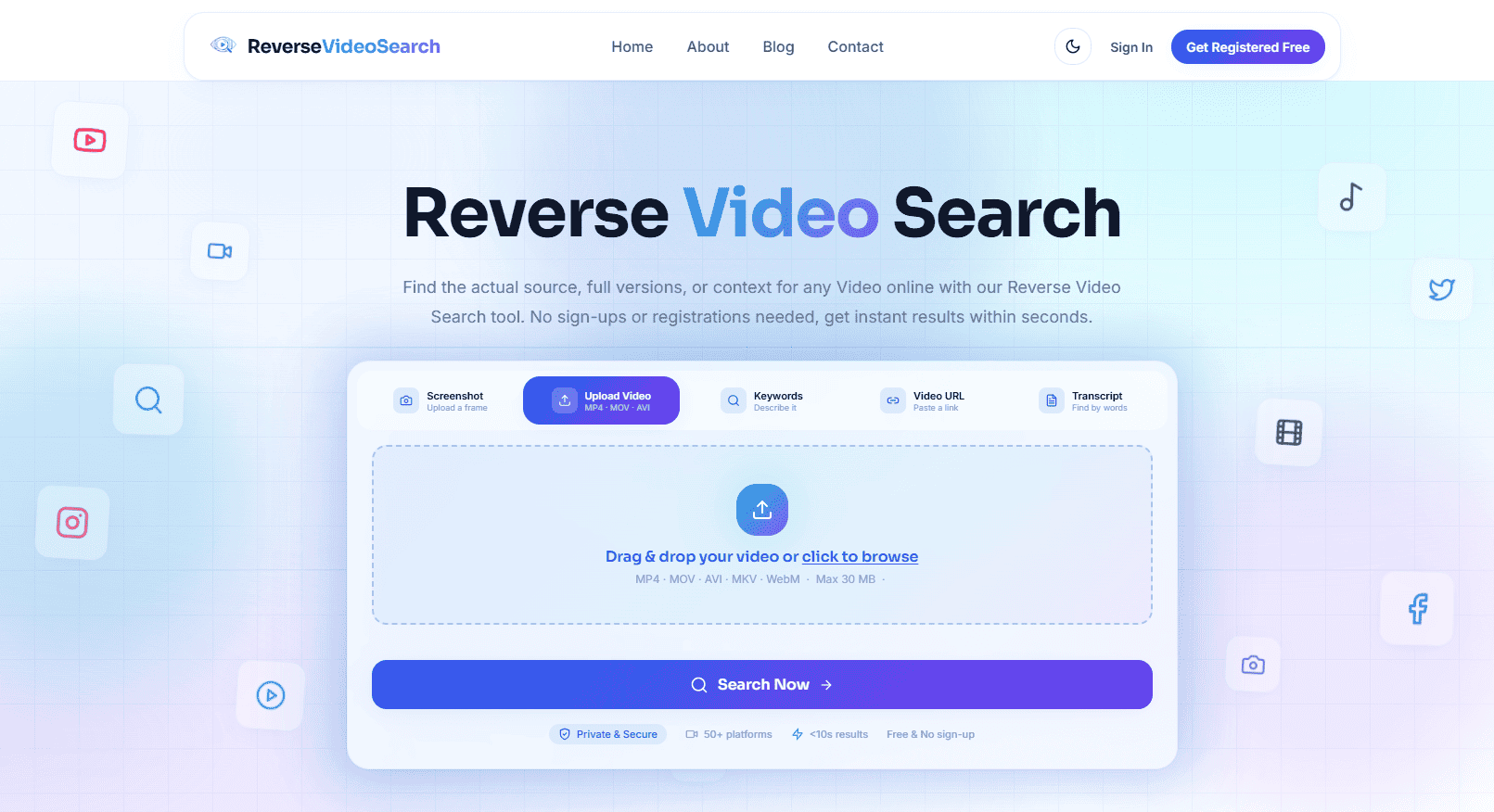
If you have an entire video, there’s no need to rely on a single frame. Reverse Video Search is an advanced tool with computer vision technology. It allows you to upload a video file, input its URL, use a screenshot, or search using relevant keywords or transcripts. The tool identifies the source links of matching videos by analyzing the keyframes and visual details of an uploaded video.
How to Use
Using the tool with a video file is straightforward. Once you have the video you want to investigate, follow these steps:
-
- Open Reverse Video Search in any browser. If you have a complete video, choose the video upload option. However, if you have a single frame available, you can also start from an image. It also supports searching by URL, keywords, or Transcript.
- Upload your video file. The tool will process the visual content to find relevant matches.
- Once an upload is complete, click the search button to begin the reverse search. The tool searches across 50+ platforms to find relevant video matches.
- Check the matching and available source pages. If the same video is reposted on different platforms, the original upload can potentially be identified by comparing the results.

Best for: If you have the full video available or just a screenshot of a frame and want to find the original source, reposts, or matching videos.
Verdict: If you want to search from one place using either the video or a screenshot, it can be a strong all-round option.
2. Berify
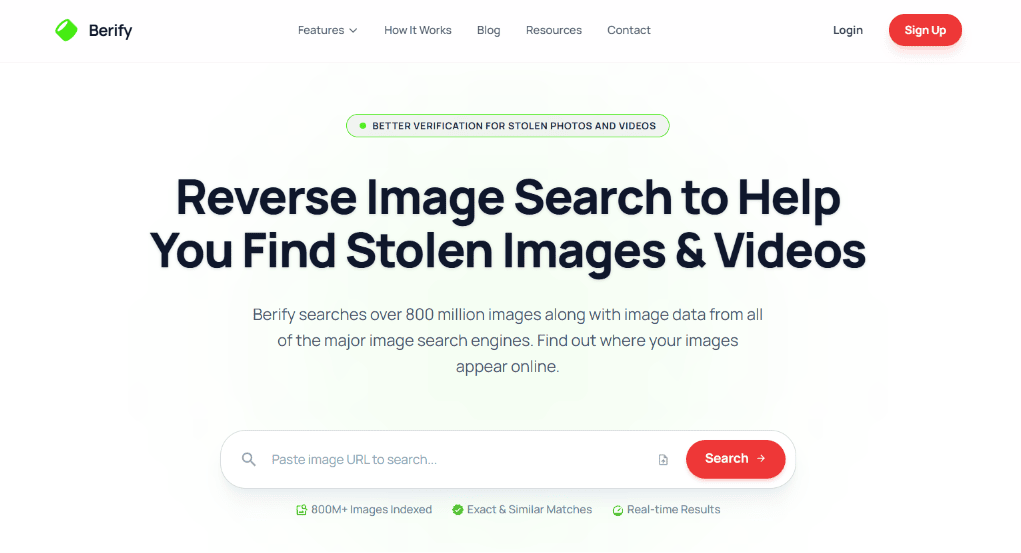
How To Use Berify?
If you have a screenshot or a clear frame from the video, you can use it to start your search on Berify. Here are a few steps to get started:
- Visit Berify and create an account.
- Upload a clear screenshot from the video or paste the image URL.
- Start the search and let Berify scan multiple search engines.
- Review the matching results displayed on the dashboard.
- Open the most relevant results to locate the original or related video.
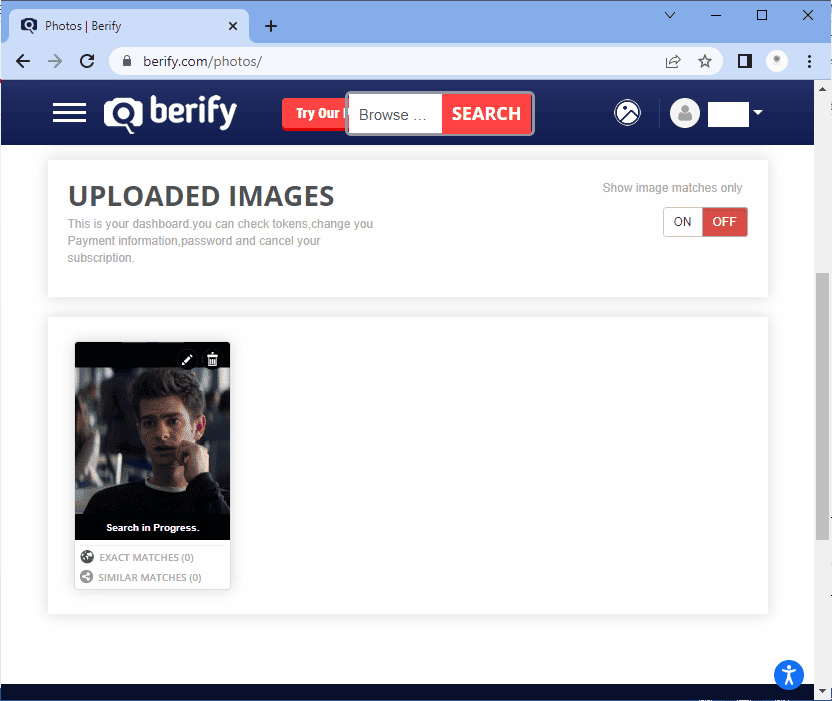
Best for: Cross-checking a clear video frame across multiple search engines.
Verdict: If you want to compare results from multiple search engines in one place, Berify is a useful option.
3. Google Lens
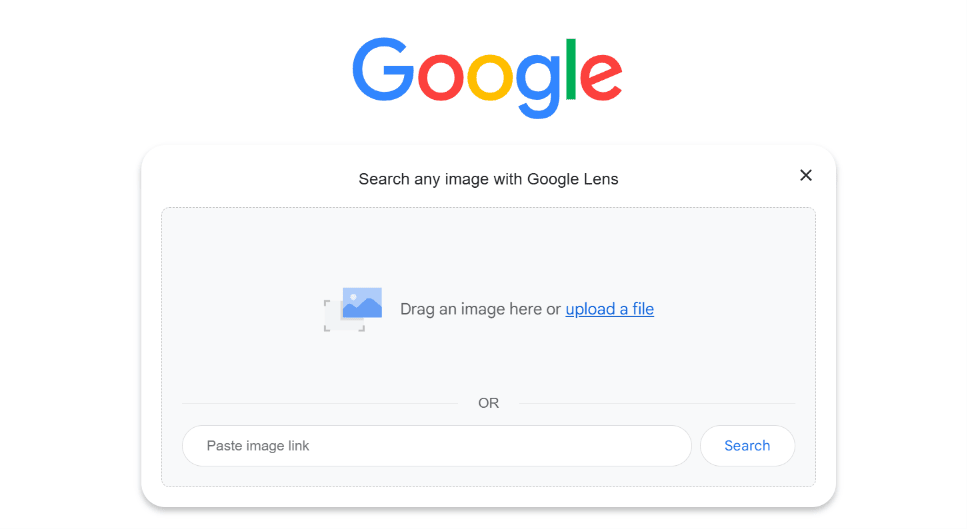
Google Lens is Google’s visual search feature that can be useful when searching with a clear screenshot or frame from a video. It helps identify visually similar content, related webpages, and possible video sources by analyzing the uploaded image. It’s a quick option when you don’t have the video file or its URL.
How To Use
Have a clear frame? Here’s how to search with Google Lens:
- Open Google Lens on your phone or visit Google Images in a desktop browser.
- Upload the screenshot taken from the video.
- Let Google Lens analyze the screenshot.
- Browse the visually similar matches shown in the results.
- Open the most relevant webpage or platform to find the original or related video
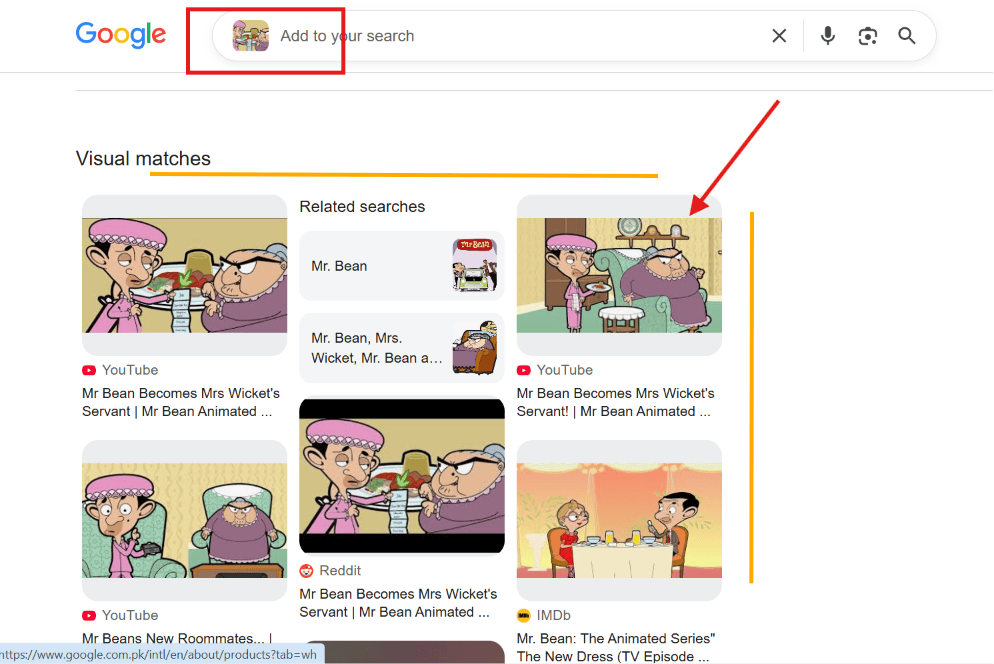
Best For: Finding visually similar content, related webpages, and possible sources from a single frame.
Verdict: Google Lens is a quick option to start with if you only have a clear frame.
4. Revideo
Revideo is worth trying if you want to explore multiple search options. You can search for a complete video, its URL, or relevant keywords. Its deep search feature helps in identifying reposted videos.
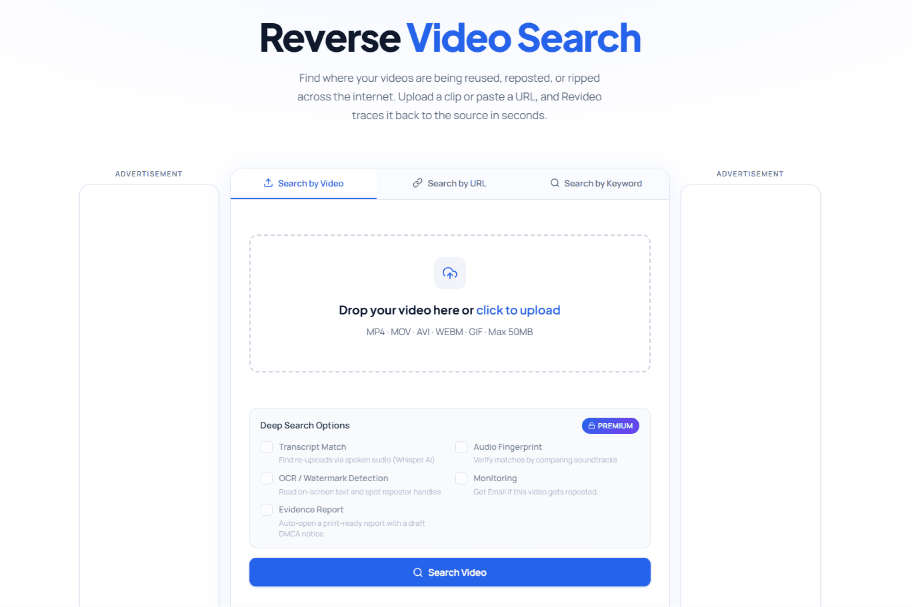
How To Use
- Have a video, URL, or keywords? Here’s how to search with Revideo:
- Visit Revideo and choose any available input method.
- Upload your video, paste the URL, or enter relevant keywords.
- Click Search and wait while the tool processes your request.
- Review the matching results displayed on the screen.
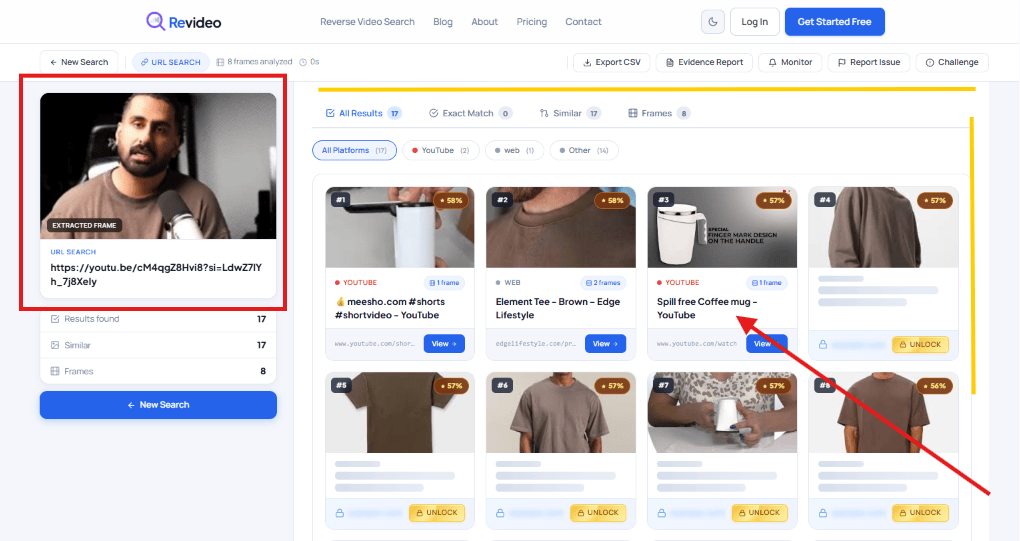
Best For: Exploring deeper matches and searching through different clues, including a video, URL, or keywords.
Verdict: A useful choice for multiple search methods and deeper searches, but viewing the matched video’s source may require premium access.
5. Yandex
Yandex Images is a visual search tool that lets you search with an uploaded image to find similar results and related content. You can use a clear image or a screenshot from a video frame to explore similar visuals and possible sources. Like Google Lens, Yandex searches by analyzing the image, but it may provide different visual matches.

How To Use
Here’s how to search with Yandex Images:
- Launch Yandex Images in your browser.
- Click on the image/search icon in the search bar.
- Add an image or a clear frame of a video.
- Yandex will analyze the image and show visually similar results.
- Review the results to spot useful matches or possible sources.
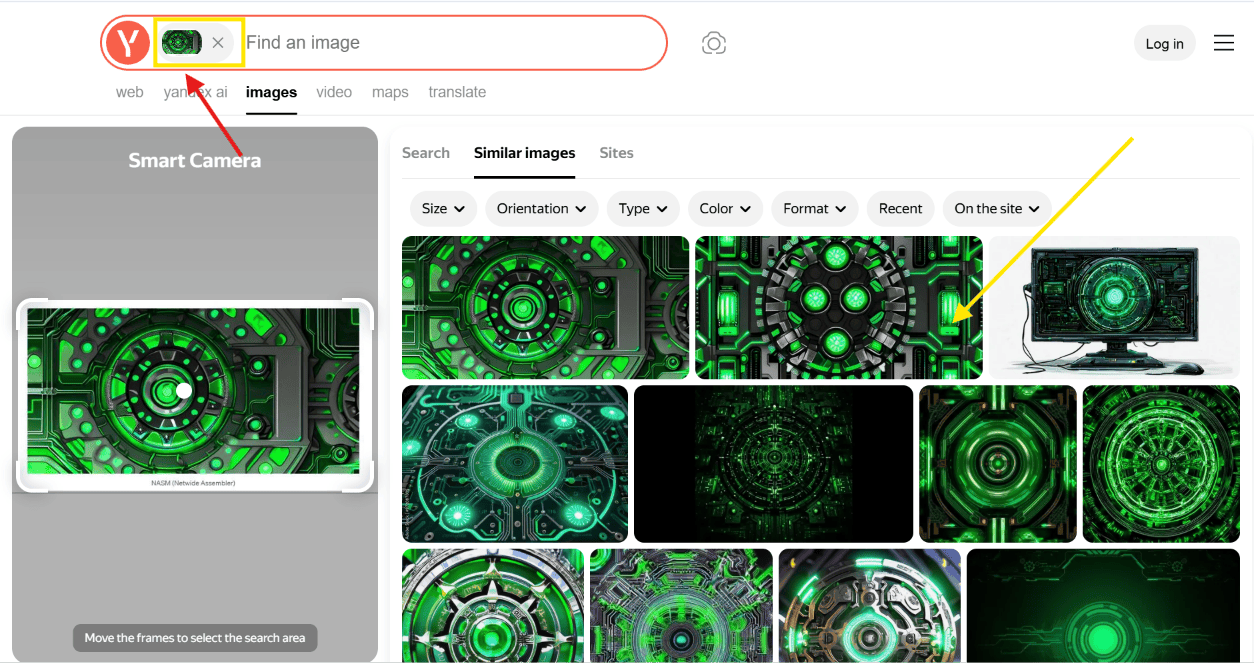
Best For: When you have a clear frame of a video and you want to perform an additional visual search alongside Google Lens.
Verdict: If you can’t find useful matches from Google Lens, try Yandex as a second visual search option.
Which Tool Works Best?
Not every tool works the same way. Here’s a quick comparison to help you see which one fits your search.
| Tool | Video | Screenshot | URL | Keywords | Transcript | Search Approach | Standout Feature | Best For |
|---|---|---|---|---|---|---|---|---|
| Reverse Video Search | ✔ | ✔ | ✔ | ✔ | ✔ | Multi-platform search | 50+ platforms & multiple input methods | Full videos, frames & source tracing |
| Berify | ✔ | ✔ | — | — | — | Multiple search engines | Cross-searching results | Cross-checking visual matches |
| Google Lens | — | ✔ | — | — | — | Visual search | Fast image-based matching | Single video frame |
| Revideo | ✔ | — | ✔ | ✔ | — | Multi-method search | Multiple input methods | Deeper searches |
| Yandex | — | ✔ | — | — | — | Visual search | Additional visual matches | Cross-checking Google Lens results |
Conclusion
Every reverse video search starts with a different clue. Sometimes it’s a screenshot, sometimes a video link, and sometimes only a few words you remember from the title or dialogue.
The tools we have covered in this guide use different approaches for reverse video search. If you have a video, screenshot, URL, or keywords, Reverse Video Search lets you search across 50+ platforms with multiple methods, all in one place. For a single frame, Google Lens and Yandex are useful visual search options. However, Berify and Revideo provide different ways to explore matching results.
If you want to try different search methods together, Reverse Video Search could be a practical starting point. If you don’t find the exact source in your first search, you can cross-check the results from Google Lens, Yandex, Berify, or Revideo.